Understanding HTML Tags and Elements: A Beginner's Guide
So you want to build websites? Everything starts with HTML. Let me break it down in a way that actually makes sense.
What is HTML?
HTML stands for HyperText Markup Language. But forget that fancy term - here's what it really is:
HTML is the skeleton of every webpage.
Think of a house:
HTML = The structure (walls, rooms, doors)
CSS = The paint and decoration
JavaScript = The electrical wiring and plumbing
When you visit any website, what you're seeing is HTML dressed up with CSS and powered by JavaScript. But it all starts with HTML.
Why Do We Use HTML?
Because browsers need to understand what's on the page. Is this a heading? A paragraph? A button? An image?
HTML tells the browser: "This is a title. This is a paragraph. This is a link."
Without HTML, your browser would just see a blob of text with no structure.
What is an HTML Tag?
A tag is like a label. It tells the browser "this piece of content is a paragraph" or "this is a heading."
Tags look like this:
<p>This is a paragraph</p>
Breaking it down:
<p>= Opening tag (starts the paragraph)This is a paragraph= Content</p>= Closing tag (ends the paragraph)
Think of tags like brackets around your content. They wrap around text to give it meaning.
Opening Tag, Closing Tag, and Content
Most HTML tags come in pairs:
<h1>Welcome to My Website</h1>
Opening tag:
<h1>- Starts the headingContent:
Welcome to My Website- The actual textClosing tag:
</h1>- Ends the heading (notice the/)
The closing tag is the same as the opening tag but with a forward slash /.
Another example:
<button>Click Me</button>
Opening <button>, content Click Me, closing </button>.
Simple, right?
What is an HTML Element?
Here's where people get confused. What's the difference between a tag and an element?
Tag = Just the <p> or </p> part
Element = The whole thing (opening tag + content + closing tag)
<p>Hello World</p>
Tags:
<p>and</p>Element: The entire
<p>Hello World</p>
Think of it like this:
Tag = The label on a box
Element = The whole box with the label AND what's inside
In practice, people use "tag" and "element" interchangeably. Don't stress about it too much.
Self-Closing (Void) Elements
Some tags don't have content, so they don't need a closing tag. These are called self-closing or void elements.
Common examples:
Image:
<img src="photo.jpg" alt="A photo">
Line break:
<br>
Horizontal line:
<hr>
Input field:
<input type="text" placeholder="Enter name">
These tags don't wrap around content - they just insert something (an image, a break, etc.). That's why they don't need a closing tag.
Old style: You might see <img /> or <br /> with a forward slash at the end. Both work, but modern HTML doesn't require it.
Block-level vs Inline Elements
This is super important for understanding how HTML lays out on the page.
Block-level Elements
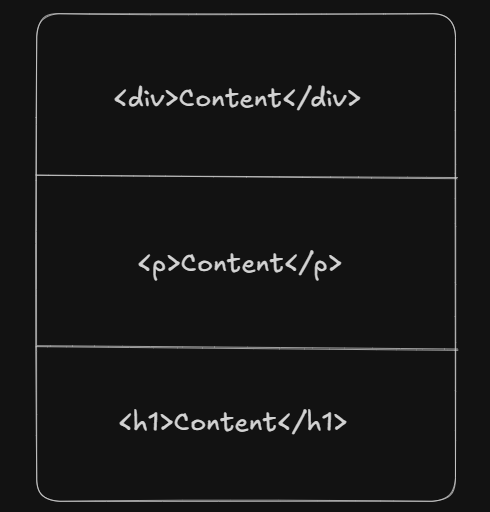
Block elements take up the full width available and start on a new line.
Think of them like boxes stacked on top of each other.
Common block elements:
<div>I take the full width</div>
<p>I start on a new line</p>
<h1>Me too!</h1>
Each one stacks vertically:
Inline Elements
Inline elements only take up as much width as needed and don't start a new line.
They flow with the text, like words in a sentence.
Common inline elements:
<span>I'm inline</span>
<a href="#">I am too</a>
<strong>Me too</strong>
They sit next to each other:
This is <span>inline</span> and <a href="#">keeps flowing</a> like text.
Visual difference:
Block elements:
Block 1
Block 2
Block 3
Inline elements:
Inline1 Inline2 Inline3
Commonly Used HTML Tags
Let's look at the tags you'll use all the time.
Headings
<h1>Main Title</h1>
<h2>Subheading</h2>
<h3>Smaller heading</h3>
<h4>Even smaller</h4>
<h5>Tiny heading</h5>
<h6>Smallest heading</h6>
<h1> is the biggest, <h6> is the smallest. Use them to structure your content.
Paragraph
<p>This is a paragraph of text.</p>
For regular text content.
Links
<a href="https://google.com">Click here</a>
Creates a clickable link. The href tells it where to go.
Images
<img src="image.jpg" alt="Description of image">
Shows an image. The alt is what shows if the image doesn't load.
Div (Division)
<div>
  <h2>Section Title</h2>
  <p>Some content here</p>
</div>
A generic container. Used to group elements together. Block-level.
Span
<p>This is <span>highlighted text</span> in a paragraph.</p>
A generic inline container. Used to style part of the text.
Lists
Unordered list (bullets):
<ul>
  <li>Item 1</li>
  <li>Item 2</li>
  <li>Item 3</li>
</ul>
Ordered list (numbers):
<ol>
  <li>First</li>
  <li>Second</li>
  <li>Third</li>
</ol>
Button
<button>Click Me</button>
Creates a clickable button.
Input
<input type="text" placeholder="Enter your name">
Creates an input field for forms.
Tag vs Element - Clear Example
Let me show you the difference one more time with a real example:
<h1>Welcome to My Blog</h1>
Tags: <h1> and </h1> (the wrapping parts)
Content: Welcome to My Blog (what's inside)
Element: The whole thing together
The element is made up of tags + content.
Quick Reference Table
| Element | Type | Purpose | Example |
<h1> - <h6> | Block | Headings | <h1>Title</h1> |
<p> | Block | Paragraph | <p>Text here</p> |
<div> | Block | Container | <div>Content</div> |
<a> | Inline | Link | <a href="#">Link</a> |
<span> | Inline | Inline container | <span>Text</span> |
<img> | Inline | Image | <img src="pic.jpg"> |
<button> | Inline | Button | <button>Click</button> |
<ul>, <ol> | Block | Lists | <ul><li>Item</li></ul> |
<br> | - | Line break | <br> |
<hr> | Block | Horizontal line | <hr> |
Try This: Inspect HTML in Your Browser
Want to see real HTML? Right now:
Right-click anywhere on this page
Click "Inspect" or "Inspect Element"
Look at the HTML tab
You'll see the actual HTML that makes up this webpage! Click around and see how tags create structure.
This is the best way to learn - inspect websites you like and see how they're built.
A Simple HTML Page Example
Here's what a basic webpage looks like:
<!DOCTYPE html>
<html>
<head>
  <title>My First Page</title>
</head>
<body>
  <h1>Welcome!</h1>
  <p>This is my first webpage.</p>
  <a href="about.html">About Me</a>
</body>
</html>
Don't worry about <!DOCTYPE>, <html>, <head>, and <body> for now - those are just the structure every HTML page needs. Focus on the tags inside <body> first.
Common Beginner Mistakes
1. Forgetting the closing tag
❌ <p>Hello
✅ <p>Hello</p>
2. Mixing up opening and closing tags
❌ <h1>Title</h2>
✅ <h1>Title</h1>
3. Not nesting properly
❌ <div><p>Text</div></p>
✅ <div><p>Text</p></div>
Close tags in reverse order of how you opened them.
The Bottom Line
HTML is simple once you get it:
Tags are labels like
<p>and</p>Elements are the complete package (tags + content)
Block elements stack vertically, take full width
Inline elements flow with text, take minimal width
Some elements are self-closing (no closing tag needed)
Now go inspect some websites and see HTML in action!
Comments
Join the discussionNo comments yet. Be the first to comment.